





![Apple Watch SE (2nd Gen) [GPS 40mm] Smartwatch with Starlight Aluminum Case with Starlight Sport Band S/M. Fitness & Sleep Tracker, Crash Detection, Heart Rate Monitor](https://www.tech-bit.com/wp-content/uploads/2024/06/applewatchse2ndgengps40mmsmartwatchwithstarlightaluminumcase-360x180.jpg)

![SAMSUNG Galaxy Buds Pro 2 [2022] (SM-R510) - (Gray)](https://www.tech-bit.com/wp-content/uploads/2023/10/samsung-galaxy-buds-pro-2-2022-sm-r510-gray-360x180.jpg)









![Apple iPhone 15 Pro (128 GB) - Black Titanium | [Locked] | Boost Infinite plan required starting at $60/mo. | Unlimited Wireless | No trade-in needed to start | Get the latest iPhone every year](https://www.tech-bit.com/wp-content/uploads/2023/10/apple-iphone-15-pro-128-gb-black-titanium-locked-boost-infinite-360x180.jpg)
![Apple Watch Series 9 [GPS 41mm] Smartwatch with Pink Aluminum Case with Pink Sport Band M/L. Fitness Tracker, Blood Oxygen & ECG Apps, Always-On Retina Display](https://www.tech-bit.com/wp-content/uploads/2023/10/apple-watch-series-9-gps-41mm-smartwatch-with-pink-aluminum-case-with-pink-360x180.jpg)


















Transitioning to a new smartphone can be a bit of a chore—transferring data, configuring settings, and logging into various apps can be time-consuming. Whether you’re looking to part ways with your old device through a trade-in program, passing it on to a friend or family member, or simply desiring a fresh start, formatting your existing smartphone to erase personal data is essential. Resetting your smartphone not only reverts all settings to their default state but, more importantly, wipes away all personal information, including app logins, photos, and messages.
Mini Portable Charger USB-C Power Bank 5200mAh,Ultra Compact LCD Display Battery Pack Backup Charger Compatible with Samsung Galaxy S21/S20/S10/S9,Note...
Resetting your Android smartphone is a quick and straightforward process, and it’s compatible with most modern devices. If your phone was released within the last five years, clearing your data should be a breeze. Here’s a user-friendly guide to help you erase all data from your Android phone.
Hyperkin SmartBoy Mobile Device for Game Boy/ Game Boy Color (Android USB Type-C Version)
Remember that while these instructions are based on Samsung and Google Pixel smartphones, you can easily initiate the process by searching for “reset” or “erase” in your smartphone’s Settings app. Additionally, it’s crucial to ensure you have both online (cloud) and offline backups of all your smartphone data before proceeding with the reset.
Mini Portable Charger 5200mAh,PD Fast Charging USB C Power Bank,Portable Phone Charger for Android,Ultra-Compact Plug in Battery Pack Compatible with Samsung...
How to Perform a Factory Reset on Your Android Smartphone (Google Pixel/Stock Android)
- Open the Settings app and tap on “System.”
- Select “Reset options.”
- Choose “Erase all data (factory reset)” at the bottom of the list.
- Review the information regarding the data that will be erased, then tap “Erase all data.”
- Authenticate the process by entering your pattern, PIN, or passcode.
- Carefully read the warning displayed on the screen and tap “Erase all data” to initiate the wipe.
![[3Pack,6FT]Android Charger Cable Type C Fast Charging Cord for Google Pixel 7a/7Pro/7/6a/6/5/4/3/XL,USB C to Type A C Port Car Cable for Samsung Galaxy S23/S22/A54/A14/A34/A24/A53/A73/S9,Moto G Stylus](https://m.media-amazon.com/images/I/41vF+F5Zf1L.jpg)
[3Pack,6FT]Android Charger Cable Type C Fast Charging Cord for Google Pixel 7a/7Pro/7/6a/6/5/4/3/XL,USB C to Type A C Port Car Cable for Samsung Galaxy...
How to Factory Reset Your Samsung Smartphone
- Launch the Settings app and select “Accounts and backup” > “Manage accounts.
- Locate your Samsung account in the list and tap on it; then, select “Remove account.”
- Return to the main Settings menu and tap on “General management.”
- Scroll down and tap on “Reset.”
- Select “Factory data reset.”
- Review the information regarding the data that will be erased and tap on the “Reset” button.
- Authenticate the process by entering your pattern, PIN, or passcode.
- Finally, tap “Delete all” to commence the smartphone wipe.
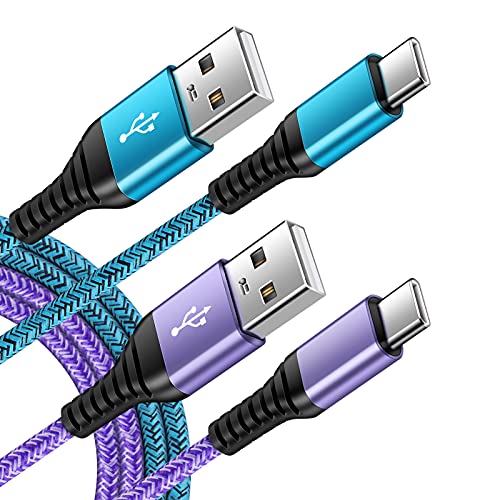
C Charger Cord Fast Charging USB Type C Cable Android charger Cables 6FT 2Pack for Samsung Galaxy S23 S22 S21 S20 Ultra S20+ Note 20 10 S10 S9 Plus A12 A11...
By following these straightforward steps, you can ensure your Android smartphone is securely reset, with all personal data removed, ready for its next adventure.