






![Apple Watch SE (2nd Gen) [GPS 40mm] Smartwatch with Starlight Aluminum Case with Starlight Sport Band S/M. Fitness & Sleep Tracker, Crash Detection, Heart Rate Monitor](https://www.tech-bit.com/wp-content/uploads/2024/06/applewatchse2ndgengps40mmsmartwatchwithstarlightaluminumcase-360x180.jpg)


![SAMSUNG Galaxy Buds Pro 2 [2022] (SM-R510) - (Gray)](https://www.tech-bit.com/wp-content/uploads/2023/10/samsung-galaxy-buds-pro-2-2022-sm-r510-gray-360x180.jpg)











![Apple iPhone 15 Pro (128 GB) - Black Titanium | [Locked] | Boost Infinite plan required starting at $60/mo. | Unlimited Wireless | No trade-in needed to start | Get the latest iPhone every year](https://www.tech-bit.com/wp-content/uploads/2023/10/apple-iphone-15-pro-128-gb-black-titanium-locked-boost-infinite-360x180.jpg)
![Apple Watch Series 9 [GPS 41mm] Smartwatch with Pink Aluminum Case with Pink Sport Band M/L. Fitness Tracker, Blood Oxygen & ECG Apps, Always-On Retina Display](https://www.tech-bit.com/wp-content/uploads/2023/10/apple-watch-series-9-gps-41mm-smartwatch-with-pink-aluminum-case-with-pink-360x180.jpg)




















Google Slides Ai Image Generator Guide 2026
Artificial intelligence has revolutionized how we create presentations, and Google Slides now incorporates powerful AI image generation capabilities that transform the way professionals, educators, and students design visual content. In 2026, these tools have become essential for anyone looking to create compelling, professional presentations without hiring a graphic designer or spending hours searching for the perfect stock photo.
The integration of AI image generation into Google Slides represents a significant leap forward in presentation technology. Users can now describe their vision in plain text and watch as sophisticated algorithms create custom images tailored to their specific needs. This comprehensive guide explores everything you need to know about using AI image generators within Google Slides, from basic functionality to advanced techniques that will elevate your presentations.
Understanding AI Image Generation in Google Slides
Google Slides’ AI image generator leverages advanced machine learning models to convert text descriptions into visual content. The system uses natural language processing to understand your requirements and generates images that match your specifications within seconds. This technology has evolved significantly since its introduction, now offering photorealistic images, artistic styles, and custom illustrations.

The AI model behind Google Slides understands context, composition, and visual aesthetics. When you input a prompt like “modern office space with natural lighting,” the system analyzes thousands of parameters to create an image that captures the essence of your description. The generator can produce images in various styles, including photographic, illustrative, minimalist, and abstract, giving users unprecedented creative flexibility.
One of the most significant advantages is the seamless integration with Google’s ecosystem. Generated images automatically resize to fit your slides, maintain proper resolution for projection or screen sharing, and can be edited using Google Slides’ built-in tools. The system also remembers your style preferences, making subsequent image generation faster and more aligned with your presentation aesthetic.
How to Access and Use the AI Image Generator
Accessing the AI image generator in Google Slides is straightforward. Open your presentation and navigate to the Insert menu, where you’ll find the “AI Generated Image” option. Clicking this opens a dialog box where you can enter your text prompt. The interface is designed to be intuitive, with helpful suggestions and examples to guide first-time users.

When crafting prompts, specificity yields better results. Instead of “business meeting,” try “diverse team of professionals having a brainstorming session in a contemporary conference room with a view of the city skyline.” The more detailed your description, the more accurately the AI can render your vision. You can specify elements like lighting conditions, color schemes, perspective angles, and emotional tone.
The generator offers several customization options after the initial image is created. You can adjust the aspect ratio to fit different slide layouts, regenerate variations if the first result doesn’t meet your needs, and apply filters or style modifications. The system also provides a seed number for each generated image, allowing you to create consistent visual themes across multiple slides by using the same seed with modified prompts.
Advanced users can leverage negative prompts to exclude unwanted elements. For example, if you’re generating images of technology but want to avoid showing any specific brand logos, you can specify this in your prompt. The AI will then ensure those elements don’t appear in the final image.
Best Practices for Effective AI-Generated Images
Creating high-quality AI images requires understanding both the technology’s capabilities and its limitations. Start with clear, descriptive language that includes the subject, setting, style, and mood. Use adjectives liberally to convey exactly what you envision. Words like “vibrant,” “minimalist,” “dramatic,” or “serene” help the AI understand the aesthetic you’re targeting.
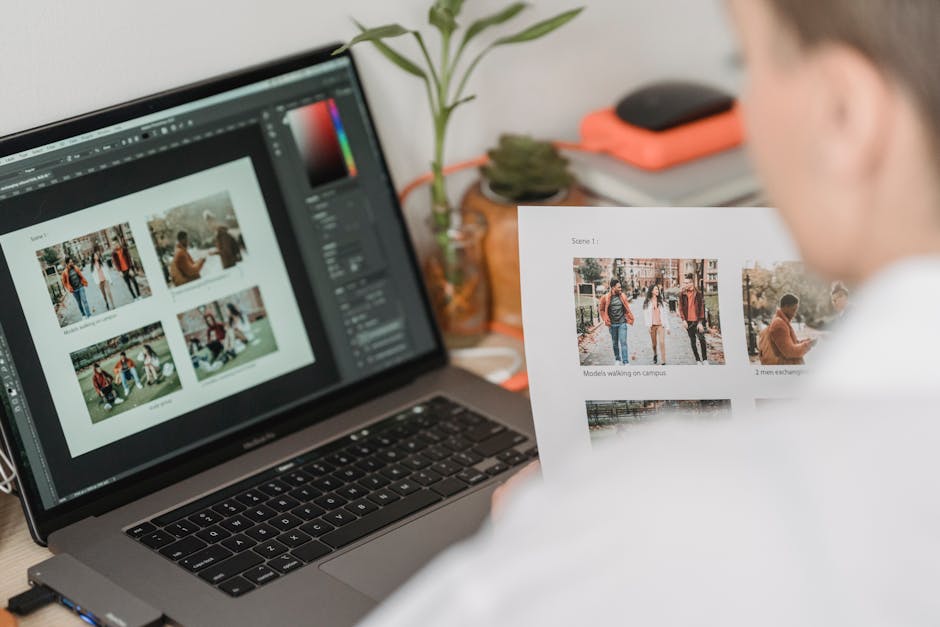
Consider your presentation’s overall design when generating images. Consistency in style creates a professional, cohesive look. If you use photorealistic images in one section, avoid switching to cartoon-style illustrations in another unless there’s a deliberate reason. The AI generator allows you to save style presets, making it easy to maintain visual consistency throughout your deck.
Resolution and quality are crucial for professional presentations. Always generate images at the highest available resolution, especially if your presentation will be displayed on large screens or projectors. The AI generator in Google Slides automatically optimizes images for presentation purposes, but you can manually adjust quality settings if needed.
Ethical considerations are increasingly important when using AI-generated images. Ensure your prompts don’t request images that could be offensive, misleading, or infringe on intellectual property. Google’s AI has built-in safeguards against generating inappropriate content, but responsible use starts with thoughtful prompt creation.
Advanced Techniques and Creative Applications
Power users can employ advanced techniques to maximize the AI image generator’s potential. Prompt chaining involves creating a series of related images that tell a story or illustrate a process. For example, you might generate a sequence showing product development from concept sketch to finished prototype, maintaining consistent visual elements across all images.
Style mixing allows you to combine different artistic approaches in a single image. You might request “a data center rendered in watercolor style” or “financial graphs presented as abstract art.” These creative combinations can make technical presentations more engaging and memorable, helping your message resonate with audiences.
The AI generator excels at creating custom icons and diagrams. Instead of searching through icon libraries, describe exactly what you need: “minimalist icon representing cloud computing with geometric shapes in teal and navy.” This approach ensures your visual elements perfectly match your brand guidelines and presentation theme.
Animation integration is another powerful feature. You can generate multiple images with slight variations and use Google Slides’ animation tools to create smooth transitions or animated sequences. This technique works particularly well for explaining processes, showing before-and-after scenarios, or adding dynamic elements to otherwise static presentations.
Troubleshooting Common Issues
Even with advanced AI technology, users occasionally encounter challenges. If generated images don’t match your expectations, refine your prompts by adding more specific details or adjusting descriptive terms. Sometimes breaking complex requests into simpler components yields better results than trying to describe everything in a single prompt.
Quality inconsistencies can occur when the AI misinterprets certain terms or concepts. If you notice unwanted elements or incorrect interpretations, use negative prompts to exclude them. For example, if you request “modern kitchen” but keep getting unrealistic appliances, add “no futuristic elements, realistic contemporary design” to your prompt.
Generation speed varies based on complexity and server load. During peak usage times, image creation might take slightly longer. If you’re working on a time-sensitive presentation, generate your images during off-peak hours or prepare backups from stock photo libraries as contingency options.
Sometimes the AI struggles with very specific or niche concepts, particularly technical subjects or highly specialized industry equipment. In these cases, combining AI-generated backgrounds or settings with manually inserted product photos or technical diagrams often produces the best results. For example, understanding how display technology like an OLED screen renders images is crucial for optimizing visual quality in tech-focused presentations.
Future Developments and Industry Impact
The trajectory of AI image generation in presentation software points toward even more sophisticated capabilities. Machine learning models continue to improve, with each iteration producing more accurate, higher-quality results. Future updates are expected to include real-time collaboration features where multiple users can refine AI-generated images together, and enhanced integration with other Google Workspace applications.
Voice-to-image generation is on the horizon, allowing users to describe images verbally during presentation creation. This feature will be particularly valuable for accessibility, enabling users with physical limitations to create visual content more easily. The technology may also incorporate gesture recognition, letting presenters modify images on the fly during live presentations. This kind of interaction is a far cry from early mobile devices like the Fire Phone Amazon, which had limited voice command capabilities.
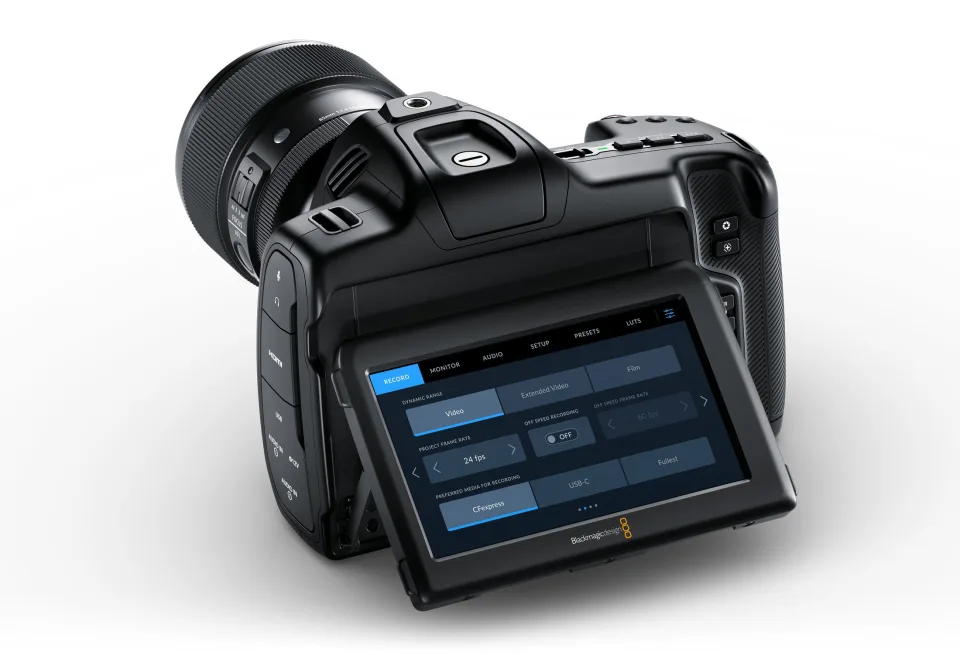
The impact extends beyond individual productivity. Organizations are reconsidering their design workflows, with AI image generation reducing reliance on stock photo subscriptions and external design services. This democratization of visual content creation empowers more people to produce professional-quality presentations regardless of their design skills or budget constraints. Much like how advancements in Blackmagic New Camera Technology in 2026 are changing video production, AI is transforming graphic design workflows.
As AI technology evolves, we’ll likely see improved understanding of brand guidelines, allowing the generator to automatically apply company-specific color schemes, logo treatments, and design standards. This advancement will further streamline corporate communication while maintaining brand consistency across all presentations. Customization options will continue to expand, similar to how users can now install a Chromecast Custom Rom for personalized media experiences.
Conclusion
Google Slides’ AI image generator represents a fundamental shift in how we approach presentation design. By combining natural language processing with advanced image generation algorithms, it empowers users to create custom visual content that precisely matches their needs. Whether you’re preparing a business pitch, educational lecture, or creative portfolio, mastering this tool opens new possibilities for visual storytelling and audience engagement.
Success with AI image generation comes from understanding both the technology and effective visual communication principles. Detailed prompts, consistent styling, and creative experimentation unlock the full potential of these tools. As the technology continues to advance, early adopters who develop proficiency now will maintain a competitive advantage in professional and academic settings.
The future of presentation design is collaborative, intelligent, and accessible. By embracing AI image generation in Google Slides, you’re not just keeping pace with technological advancement—you’re positioning yourself at the forefront of modern communication. Start experimenting today, and discover how these powerful tools can transform your presentations from ordinary to extraordinary.